| Pos. | Work step |
|---|---|
| 1. | Left-click the FileLinker icon in the right taskbar corner. |
| 2. | Select the "New Project" menu item in the FileLinker menu.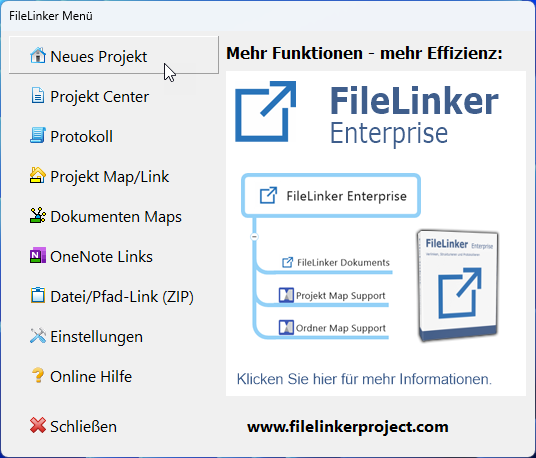 |
| 3. | The FileLinker dialog box for creating a new project appears.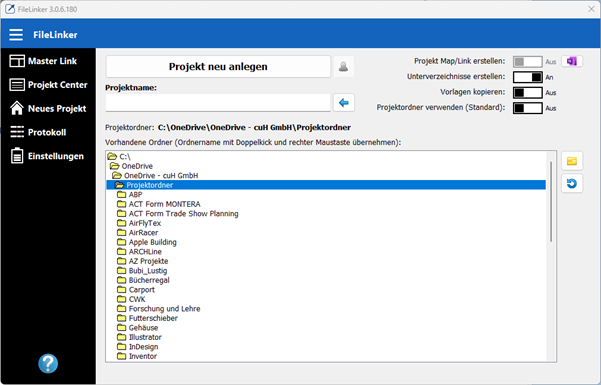 |
| Note: If your project folder is not yet defined, define it in the FileLinker settings. If subdirectories are to be created automatically, these must also be defined in the FileLinker settings. | |
| 4. | Enter a project name.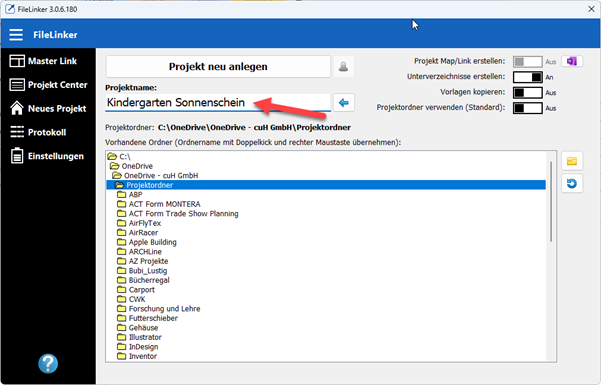 |
| 5. | Click the displayed OneNote button to the right of the Create Project Map/Link button.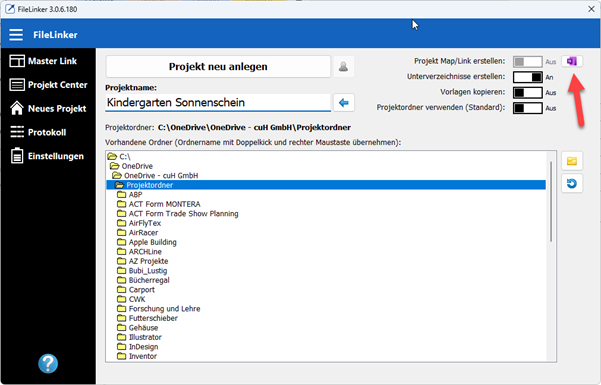 |
| 6. | OneNote will be opened automatically.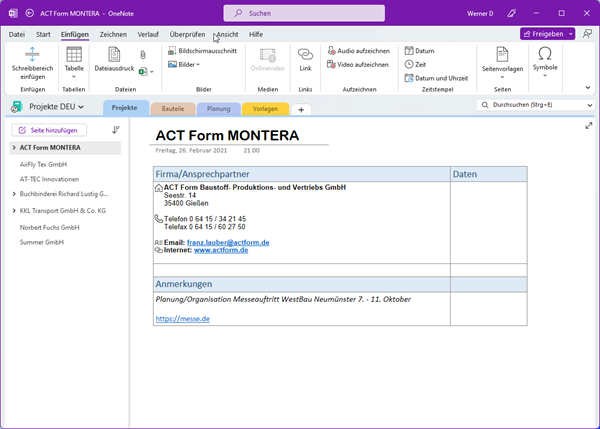 |
| 7. | Create a project page in OneNote.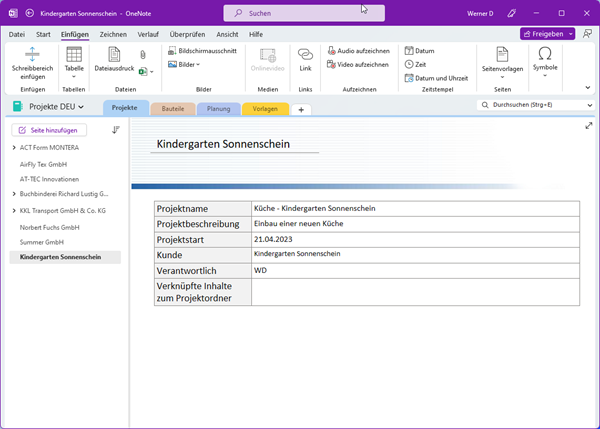 |
| 8. | Move the mouse pointer in the page column to the desired page to be assigned. (Page column = column with the list of names of the pages). |
| 9. | Press the right mouse button to open a pop-up menu. |
| 10. | In the pop-up menu, select the "Copy link to page" menu item.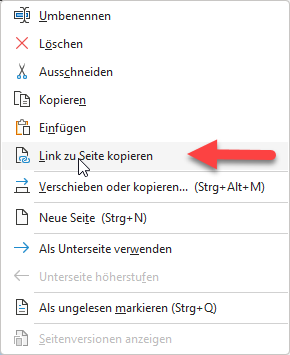 |
| 11. | FileLinker is automatically brought to the foreground and the Project Map/Link button is now active. A blue check mark is displayed next to it.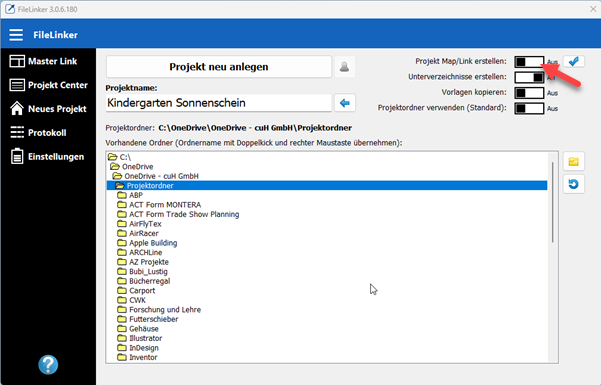 |
| 12. | Activate the Project Map/Link switch. The check mark is now displayed in green. |
| 13. | Now click on the "Create new project" button.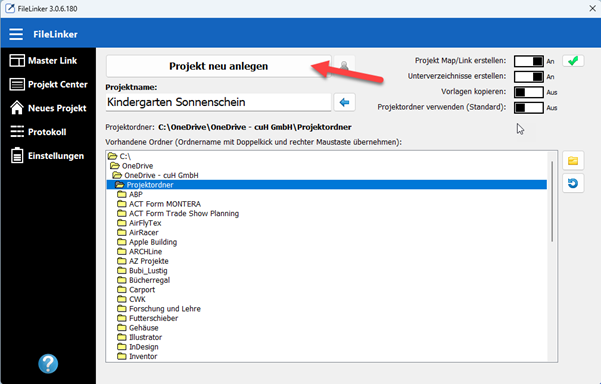 |
| 14. | The new directory is created in the selected project folder with the corresponding subdirectories. Various options are now available to you: Transfer the project link to the Project Center. 2. copy the project link to the clipboard as a file. 3. save the project link as a file. Copy only the one to the clipboard. 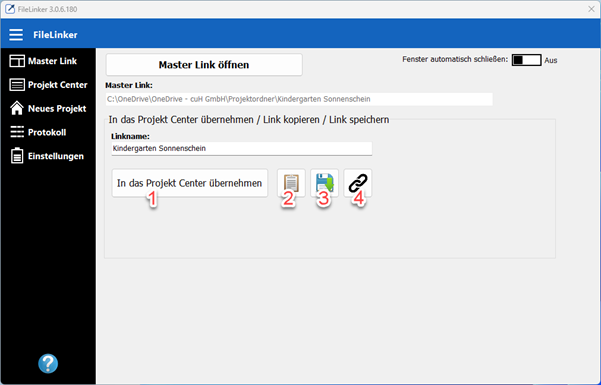 |
| 15. | Option 1: Transfer the project link to the FileLinker Project Center. |
| 16. | Optionally, you can enter a short description. Click the OK button when you are finished.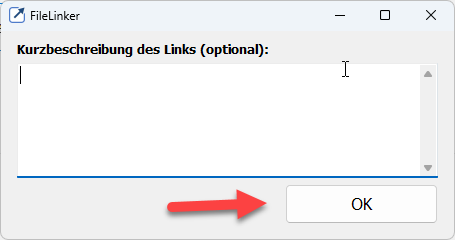 |
| 17. | The project link is transferred to the FileLinker Project Center.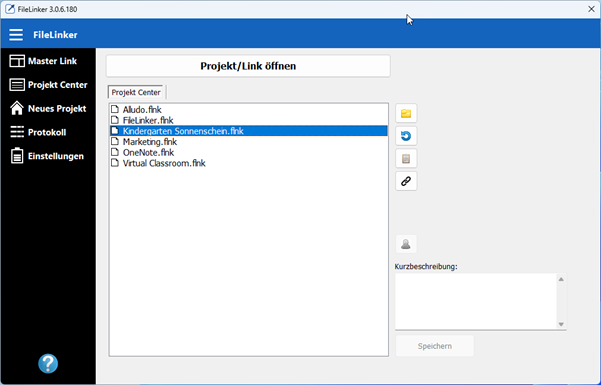 |
| 18. | Select the desired project link and click the "Copy project link to clipboard" button. |
| 19. | Switch to your OneNote project page and position the mouse cursor in your desired position. |
| 20. | Press the CTRL+V key combination or select the Paste command to paste the project link as a file.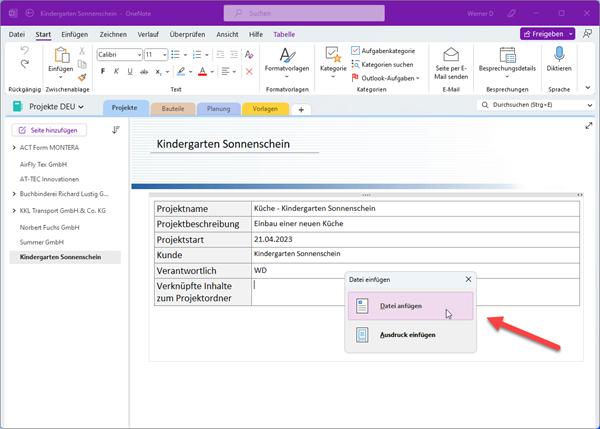  |
| 21. | As soon as you double-click on the project link on your project page, FileLinker will take you to your project folder.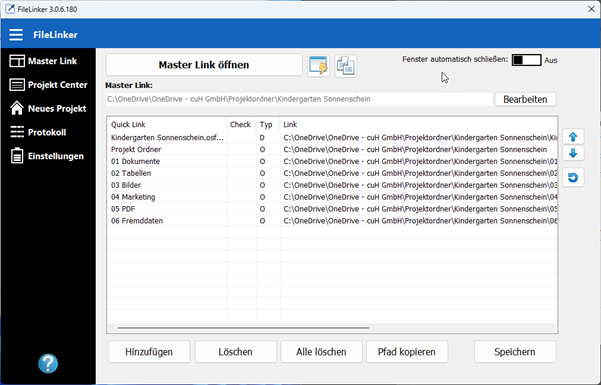 |
| 22. | As soon as you save a document (drawing) in your project folder, the project page can be called immediately via FileLinker.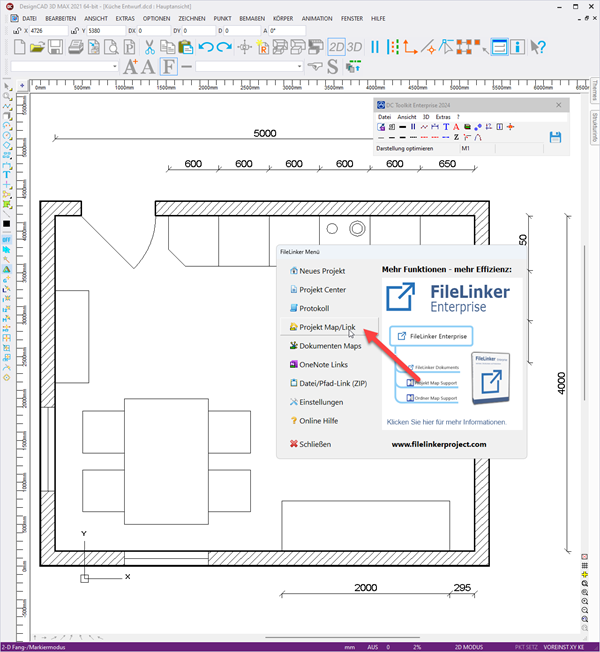 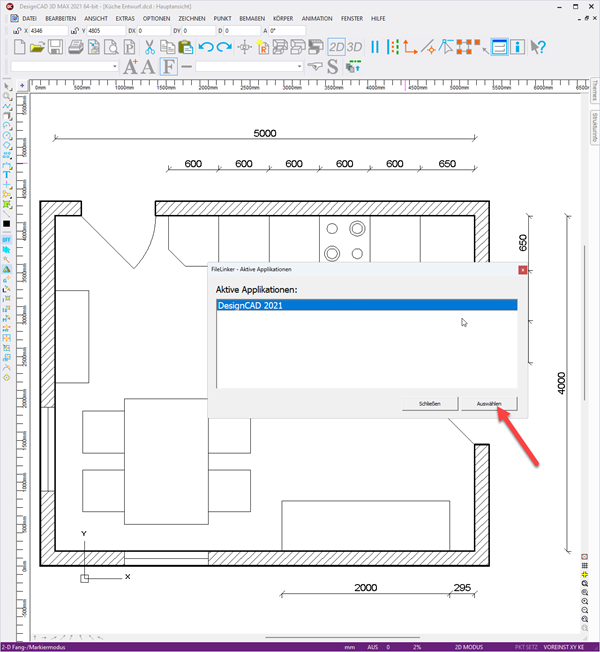 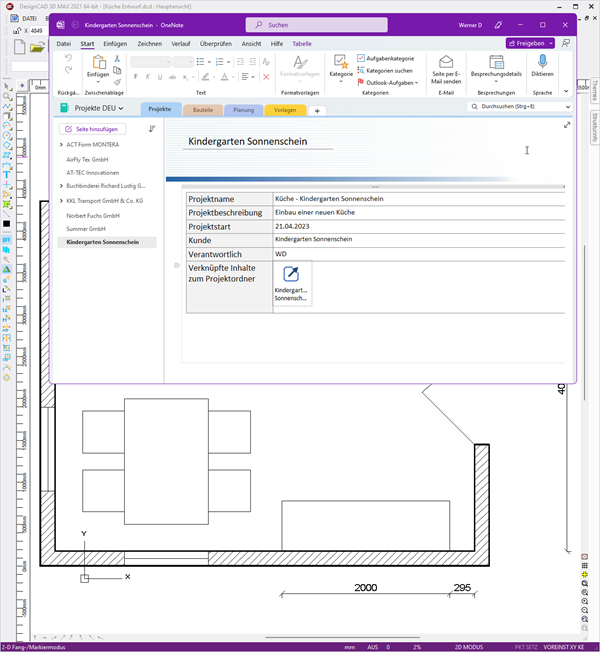 |
Quick contact: info@filelinkerproject.com

FileLinker
Centrally organize projects, documents, drawings, AI chats, and knowledge